
Technology

Integrity
Clarity
Curiosity
What this means for your child
Technology at Montclair is practical and paced. Students first learn to keep their work organised and present ideas clearly. Then they start controlling sensors, building mechanisms, and telling stories with images and sound. Every step ends with something visible you can recognise—well‑formatted reports, neat charts, working demos, sturdy models, and short videos that credit their sources.
Support and stretch are built in. Quick checks in lessons trigger same‑day reteaching; when a child is secure, they choose an extension path in the Library, in CodeForge/AI & Robotics, the Engine Room, Pixel Forge, or the Venture Studio.
Spaces explained (what happens where)
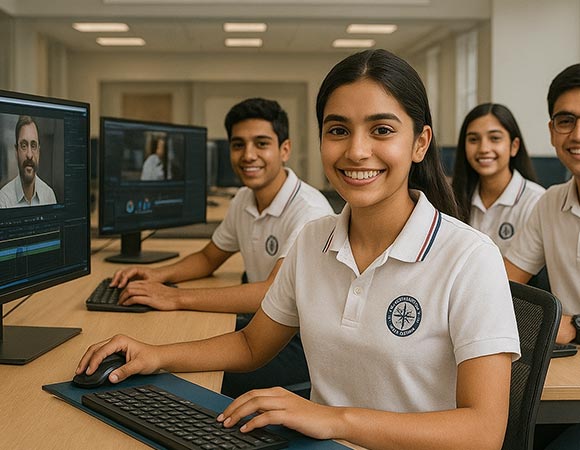
CodeForge — Computing foundations that show up across school work
CodeForge is where good digital habits start. Students learn how to name files, keep versions, and store work in shared drives so nothing goes missing. They practise clean documents—clear headings, readable fonts, and images that are appropriately credited. They learn how to turn a small data set into a chart that actually answers a question, and how to build a short slide deck that says one thing per slide. Later, they meet simple programming ideas, so logic feels familiar when robotics begins.
What you’ll see: reports with headings and references, tidy spreadsheets and charts with units, and short presentations that get to the point.
AI & Robotics — From simple behaviours to thoughtful automation
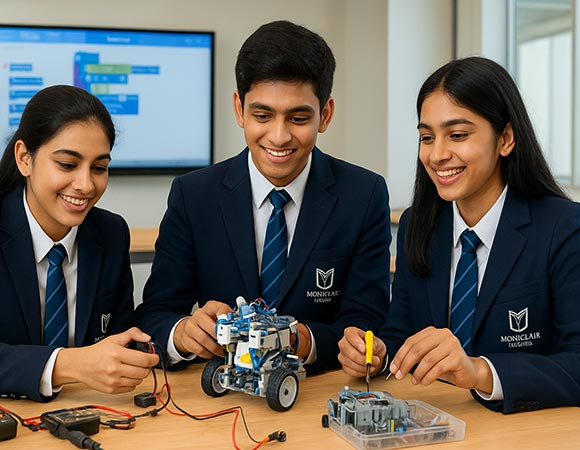
Students begin by giving clear instructions using block‑style commands and quickly move to age‑appropriate text code. They wire standard sensors and motors, test behaviours like line‑following or obstacle‑avoidance, and learn to read error messages calmly. Design choices are purposeful: a greenhouse sensor kit, for example, must alert the user at the right time and in the right way. Along the way, we talk about ethics—consent for images, what to automate, and how to credit others’ work.
What you’ll see: a working demo with commented code, a simple poster that explains how it works, and a two‑minute video where students speak clearly about decisions and trade‑offs.
STEM Activity Bay — Tinkering with discipline
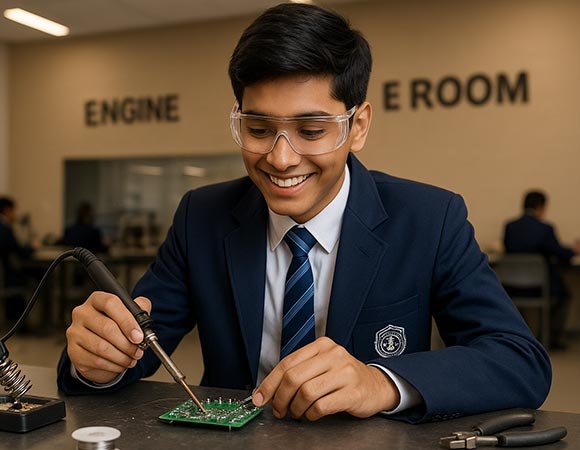
This is the bench where ideas become real. Students follow a build sheet with a parts list and a neat diagram, then wire and test a small circuit. They develop tidy habits—labelled storage, cable care, and a ‘clean exit’ routine—so the next group starts fresh. Projects are approachable on purpose: lighting an art piece, making a ‘smart plant’ moisture indicator, or designing a simple alarm that works every time.
What you’ll see: annotated build sheets, short test clips, and notes that say what failed, how it was fixed, and what changed after the fix.
Engine Room — Mechanisms, structure, and reliability
The Engine Room is where students meet real‑world constraints. They sketch, prototype, and test structures and mechanisms, learning why joints fail and why cable management matters. A bridge‑span challenge or a kinetic sculpture makes cause‑and‑effect obvious: if the joint is weak, the model tells the truth. Students keep logbooks, record redesigns, and re‑test so they learn how reliable systems are built.
What you’ll see: models that have been tested, short videos of retests, and a quick viva‑style explanation of how the design improved.
Pixel Forge — Photography & film with respect for credit and consent
Students practise framing, light, sound, and editing to tell short, honest stories. A science ‘how it works’ video, a campus photo essay, or a short public‑service message becomes a chance to speak clearly and credit every image and sound used. We teach screening etiquette—light and sound levels, and how to be a good audience—so students learn to share work with pride.
What you’ll see: an edit timeline, a finished cut with a credit roll, and pop‑up screenings in Forum 208.
Montclair Venture Studio — From problem to prototype to pitch
In the Venture Studio, students choose a real need, interview users, and sketch ideas. They make a simple prototype, test it, and improve it based on feedback. They also learn the basics of cost and how to explain value. The final step is a short pitch—two minutes with a working demo—so students experience the pressure and fun of sharing with an audience.
What you’ll see: a working prototype, a one‑page cost sheet, and a concise pitch deck, with mentors’ notes on next steps.
Digital citizenship (explicit and ongoing)
Across projects, students learn to credit creators, respect privacy and consent, and keep healthy habits with devices. These aren’t one‑off assemblies: the rules are practised whenever they write, code, film, or share.
Parent look‑fors on a lab visit
- Success criteria visible before students start; an example to define quality.
- A narrated model of the workflow—rename → save → organise or code → test → log a bug.
- Short checks that trigger same‑day help or extension routes.
- Clean‑exit routines at benches and respectful screening etiquette in media rooms.
Pathways by Stage (Early → Senior)
Early Years & Primary
- Computing foundations: file discipline, shared drives, and naming your work so it never gets lost.
- Clean documents and charts: short reports with headings, pictures, and labelled axes.
- Story slides: one idea per slide, large type, and pictures you have the rights to use.
Middle School
- Data to decisions: spreadsheets that actually answer a question; charts with titles and units.
- Intro to control: block‑based logic moving towards text commands; reading sensors and switching outputs.
- Bench discipline: labelled storage, tidy wiring, and a ‘clean exit’ routine after every build.
Secondary & Senior
- Text‑based control and debugging; code comments that explain the ‘why’.
- Mechanisms and reliability: joints, tolerances, and retesting after a failure.
- Media craft: shot lists, edit timelines, sound hygiene; respectful crediting and release etiquette.
- Prototype → pitch: user interviews, cost basics, and a two‑minute demo to a mentor panel.
Facilities
These are the technology‑focused spaces your child will use. Each one has clear safety routines and visible success criteria, allowing students to focus on the work.
Robotics & AI Lab
small robots, sensors, and controllers used to build purposeful behaviours, with calm test areas for safe trials.
Technology Lab
a flexible room for computing, drafting, and device‑based projects; students move from brief → plan → make → review.
Engineering Lab / Engine Room
benches for electronics and mechanisms, with shared tool care and labelled storage to keep builds reliable.
Computer Lab (CodeForge)
structured computing practice and productivity standards that show up in every subject.
STEM Activities Lab
approachable kits for wiring, switching, and testing, with transparent build sheets and tidy hand‑offs.
Pixel Forge (Film & Photography)
cameras, lights, and editing stations for short, ethical videos and photo essays.
Multimedia Room (Podcast/AV)
a quiet space for voice recording and audio editing with simple, posted etiquette.
Recording Studio
supervised sessions to capture clean audio for films, podcasts, and performances.
FAQs
No. We begin with block logic and move to text commands when ready.
We model bench routines, tool care, and consent rules, then practise them in every project.
Frequent checks and visible outputs: reports, charts, code with comments, demos, and short videos.
Yes. Venture Studio teams may pilot solutions with mentor feedback and present them in public pitches.